How do I add variants (size, color) to a Shopify product?
A T-shirt in three sizes and two colors is one product with six variants. Shoppers pick on the product page, and you track inventory for each variant.
The essentials in 30 seconds
- Open the product
- Add an option
- Enter the values
- Set the price and inventory of each variant
- Match a photo to each color
- Save and check your store
Avoid: Creating a separate product for each size: shoppers no longer see the other sizes and your stats get scattered.
See the details with screenshots ↓Step by step
Screenshots show the interface used in the original guide (Shopify in French, Leadpages in English). In your account, buttons appear in your language.
- 1
Open the product
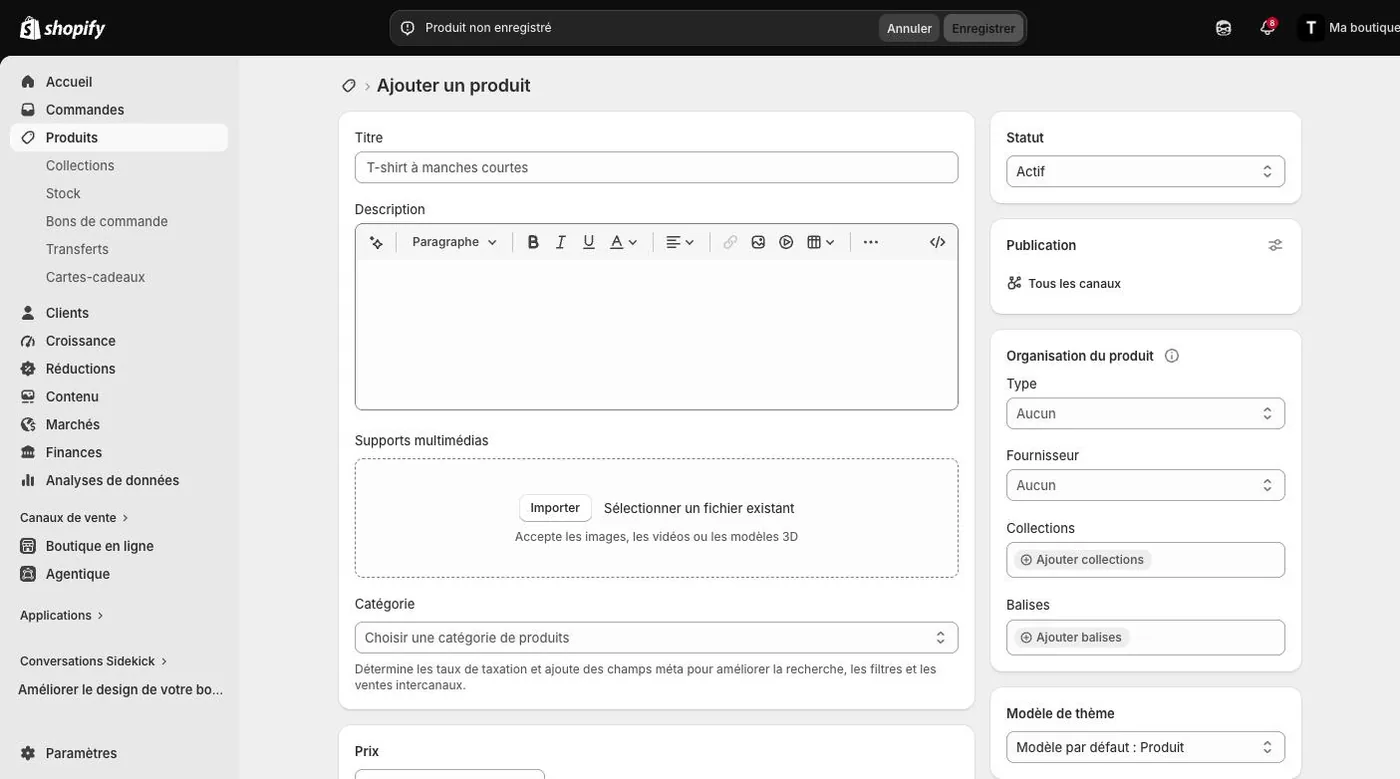
In the left menu, click Products, then the product you want to edit, or Add product to create one. Fill in the title, description and photos first.
- 2
Add an option
Scroll down to the Variants section and click Add options like size or color. Under Option name, type for example "Size".
- 3
Enter the values
Under Option values, type one value per line: S, then M, then L. Click Done. Add a second option, such as "Color", the same way: Shopify creates every combination.
A product can have up to 3 options (for example size, color and material).
- 4
Set the price and inventory of each variant
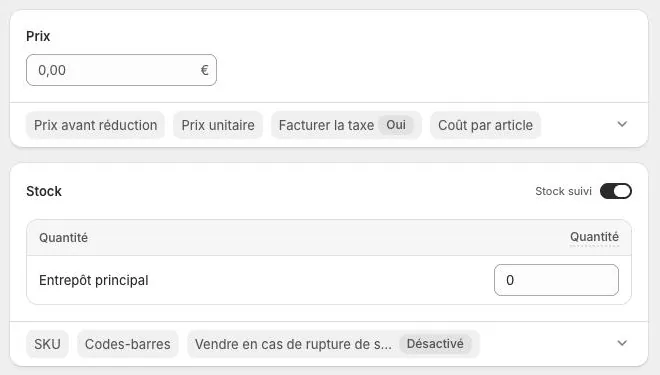
Shopify lists the variants. Click a variant to change its price (an XL can cost more), its SKU and its quantity in stock. Use Group by to edit all the variants of one color at once.
- 5
Match a photo to each color
In the variant list, click a variant's image square and pick the matching photo. When a shopper selects "Blue", the blue photo shows up.
- 6
Save and check your store
Click Save, then open the product in your store: the size and color pickers appear on the page. Try a sold-out variant to see what shoppers see.
Try it yourself
Shopify starts free, then has a discounted launch offer. You can set everything up before paying.
Try Shopify ↗Affiliate link: it does not change the price for you.
Common mistakes
- Creating a separate product for each size: shoppers no longer see the other sizes and your stats get scattered.
- Forgetting a variant's inventory: it shows as available when it isn't, or stays stuck at 0.
- Using the same photo for every color: shoppers can't see what they are buying.
Official sources
Get the next guides
New Leadpages, HTML Pub and Shopify guides by email, every two weeks. No spam, unsubscribe in one click.