How do I add a contact form to my Shopify store?
Before buying, many shoppers want to know they can reach you. Shopify comes with a ready-made "contact" page template: create the page, pick that template and add it to your menu. No code, no app.
The essentials in 30 seconds
- Create a page
- Write a short intro
- Choose the "contact" template
- Add the page to your menu
- Check where messages go
- Keep spam protection on
Avoid: Creating the page without choosing the "contact" template: the page shows up, but with no form.
See the details with screenshots ↓Step by step
Screenshots show the interface used in the original guide (Shopify in French, Leadpages in English). In your account, buttons appear in your language.
- 1
Create a page
In your Shopify admin, click Online Store, then Pages (in some versions, Pages is under Content). Click Add page and title it "Contact".
- 2
Write a short intro
In the content box, say in two sentences when you reply (for example "within 24 hours, Monday to Friday") and what to write about: orders, returns, product questions.
- 3
Choose the "contact" template
On the right, under Theme template, choose "contact". This template adds the form (name, email, phone, message) below your text. Make sure the page is Visible, then click Save.
- 4
Add the page to your menu
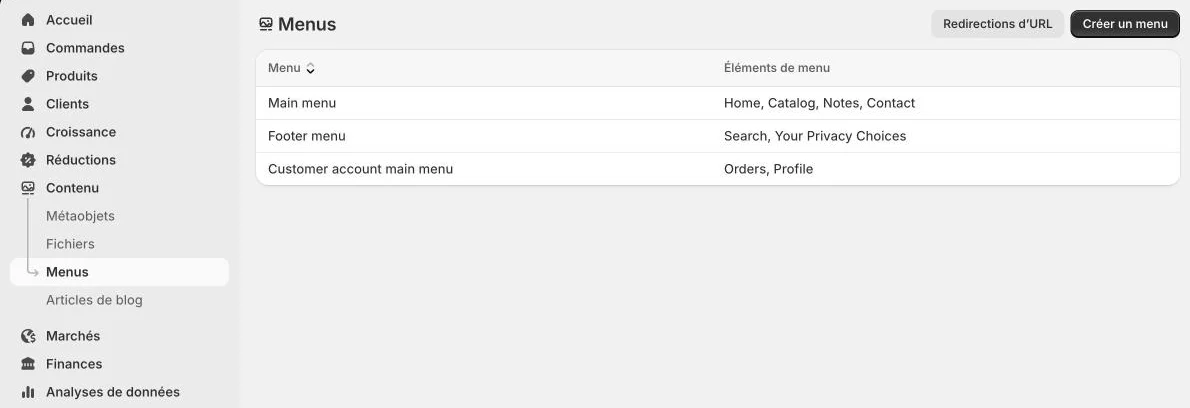
Go to Content, then Menus, and open your main menu or footer menu. Click Add menu item, type "Contact" and pick the Contact page as the link. Save.
- 5
Check where messages go
Contact form messages go to your store email address, set in Settings. Make sure it is correct, then send yourself a test message from the page: it should land in your inbox (check spam too).
- 6
Keep spam protection on
In Online Store, then Preferences, the Spam protection section turns on hCaptcha for the contact form. Leave it on: it blocks bots without getting in the way of real customers.
Try it yourself
Shopify starts free, then has a discounted launch offer. You can set everything up before paying.
Try Shopify ↗Affiliate link: it does not change the price for you.
Common mistakes
- Creating the page without choosing the "contact" template: the page shows up, but with no form.
- Never testing the form: if your store email is wrong, customer messages get lost.
- Hiding the page: with no link in the menu or footer, nobody finds it.
Official sources
Get the next guides
New Leadpages, HTML Pub and Shopify guides by email, every two weeks. No spam, unsubscribe in one click.