How do you start from a template in Leadpages?
A template saves you from starting with a blank page. You keep a structure that works and replace the text, images and colors.
The essentials in 30 seconds
- Open the templates
- Preview before choosing
- Use it
- Adapt the content
- Check on mobile, then publish
Avoid: Leaving the template's placeholder text on the live page.
See the details with screenshots ↓Step by step
Screenshots show the interface used in the original guide (Shopify in French, Leadpages in English). In your account, buttons appear in your language.
- 1
Open the templates
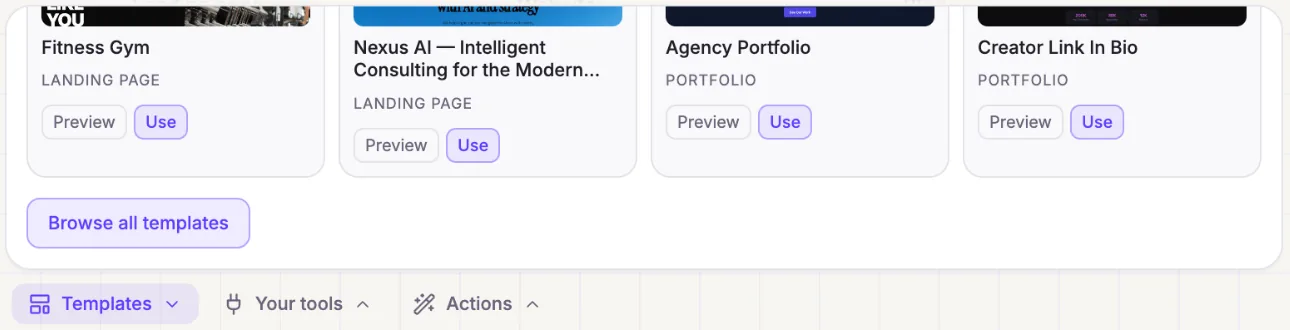
On the « Create » screen, click « Templates » above the input bar, or « Browse all templates » to see them all.
- 2
Preview before choosing
Click « Preview » to see the template full size. Choose the one whose structure matches what you want to sell, not just the one with colors you like.
- 3
Use it
Click « Use ». A copy of the template opens, and you can edit it without breaking anything.
- 4
Adapt the content
Ask the assistant to replace the text with yours, or edit it directly. Add your logo, photos and colors.
- 5
Check on mobile, then publish
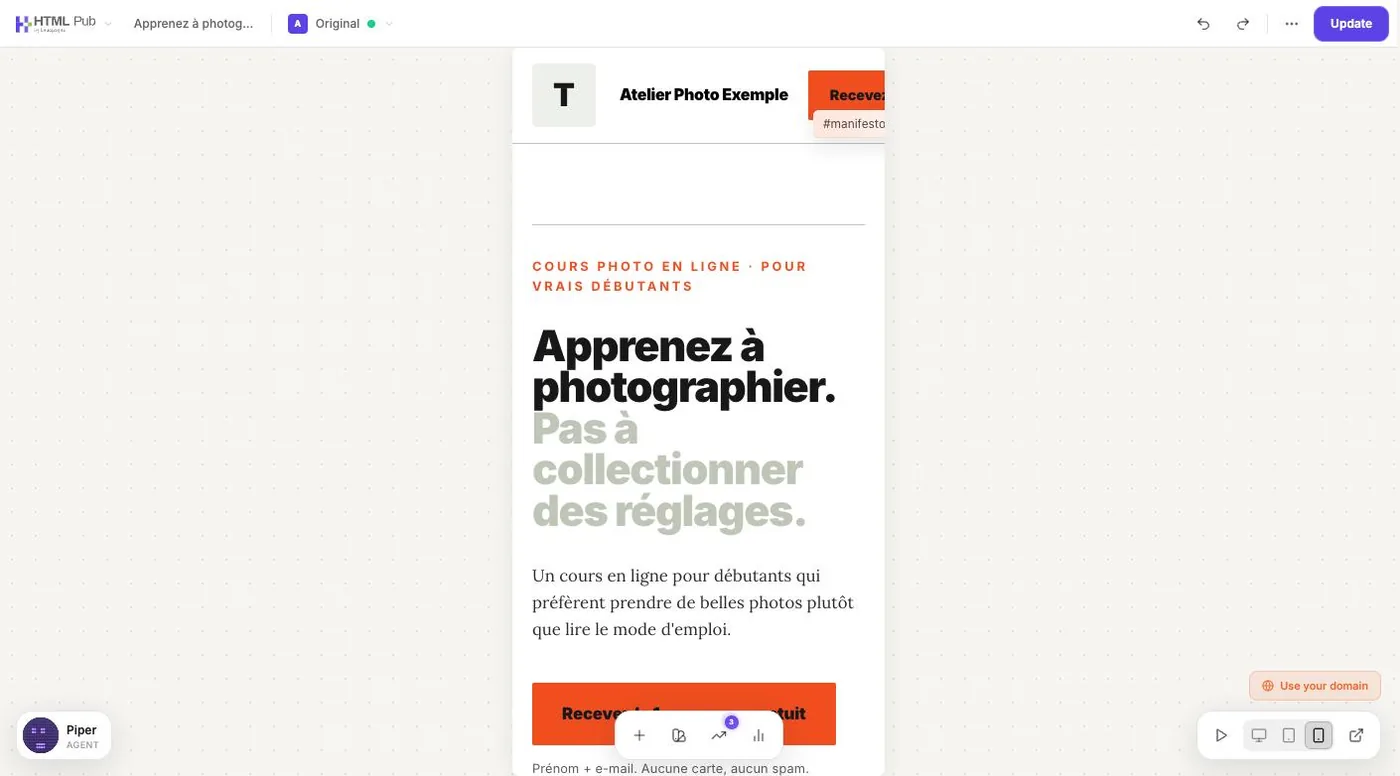
Most visitors arrive on their phone. In the editor, click the mobile icon at the bottom right to check, then publish.
Try it yourself
Every HTML Pub and Leadpages plan has a 7-day free trial, with all features.
Try Leadpages for 7 days ↗Affiliate link: it does not change the price for you.
Common mistakes
- Leaving the template's placeholder text on the live page.
- Keeping every section of the template when some don't serve your offer.
Official sources
Get the next guides
New Leadpages, HTML Pub and Shopify guides by email, every two weeks. No spam, unsubscribe in one click.