How do you publish an HTML Pub page straight from Claude?
HTML Pub has a connector for Claude (MCP). Once it's connected, you ask Claude for a page and it publishes it to your account.
The essentials in 30 seconds
- Check your plan
- Add the connector in Claude
- Authorize access
- Ask for your page
- Edit by chatting
Avoid: Adding the wrong connector address: copy it from the official help center.
See the details with screenshots ↓Step by step
Screenshots show the interface used in the original guide (Shopify in French, Leadpages in English). In your account, buttons appear in your language.
- 1
Check your plan
The MCP connector is included in every HTML Pub and Leadpages plan, from Starter up.
- 2
Add the connector in Claude
On claude.ai, open Settings, then Connectors, choose « Add custom connector » and paste the address https://mcp.htmlpub.com/mcp.
- 3
Authorize access
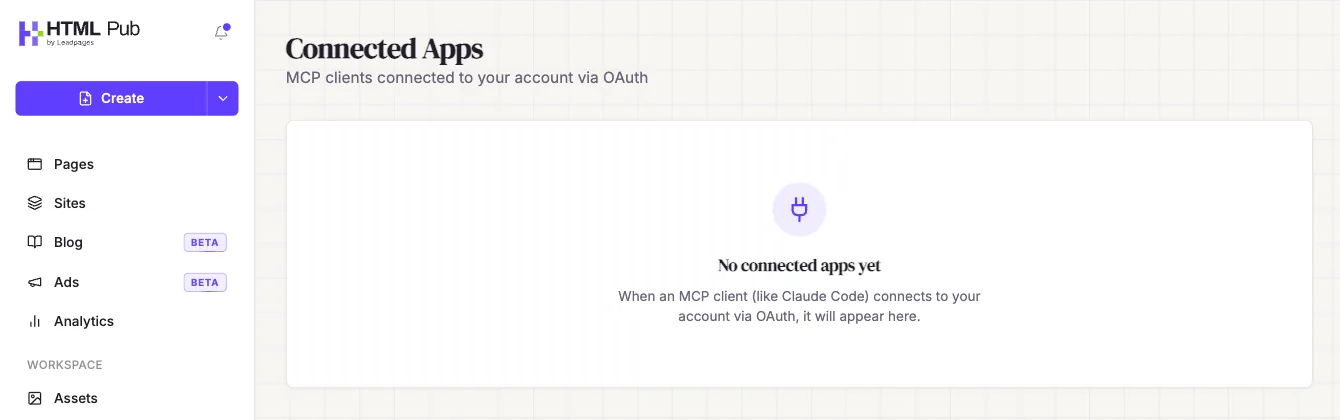
Sign in to your HTML Pub account when Claude asks. No API key is needed. Claude then appears in « Connected Apps », in your workspace menu.
- 4
Ask for your page
For example: « Create and publish on HTML Pub a landing page for my photography workshop, with a sign-up form. » Claude gives you the page address.
- 5
Edit by chatting
Ask Claude for changes: it edits the existing page without starting over.
Try it yourself
Every HTML Pub and Leadpages plan has a 7-day free trial, with all features.
Try Leadpages for 7 days ↗Affiliate link: it does not change the price for you.
Common mistakes
- Adding the wrong connector address: copy it from the official help center.
- Publishing without reviewing: always check the live page.
Official sources
Get the next guides
New Leadpages, HTML Pub and Shopify guides by email, every two weeks. No spam, unsubscribe in one click.