How do you get the leads from your forms?
HTML Pub detects the forms on your pages automatically and saves the responses. There's nothing to set up.
The essentials in 30 seconds
- Add a form to your page
- Open « Submissions »
- Review the responses
- Export to CSV
- Delete when asked
Avoid: Sending the form to an outside service: HTML Pub then no longer sees the responses.
See the details with screenshots ↓Step by step
Screenshots show the interface used in the original guide (Shopify in French, Leadpages in English). In your account, buttons appear in your language.
- 1
Add a form to your page
Ask the assistant to « add a form with first name and email », or use a template that includes one.
- 2
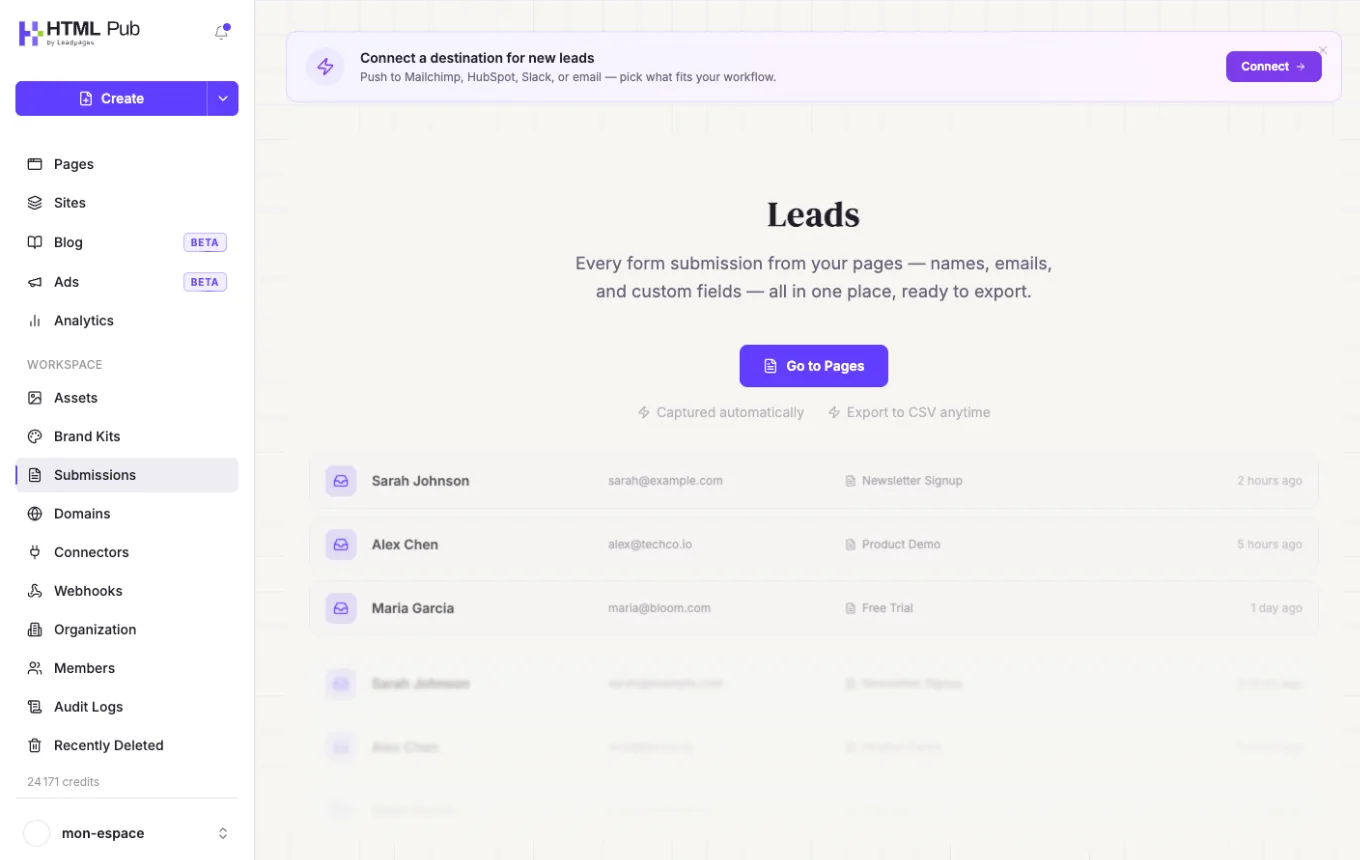
Open « Submissions »
In the left menu, click « Submissions ». The « Leads » page groups every response: name, email, source page and date.
- 3
Review the responses
For a single page, open its « … » menu in « Pages » and choose « Submissions ». Expand a row to see every field filled in.
- 4
Export to CSV
Export the responses to CSV to open them in Excel or Google Sheets.
- 5
Delete when asked
The trash icon deletes a response permanently. Useful if someone asks for their data to be erased.
Try it yourself
Every HTML Pub and Leadpages plan has a 7-day free trial, with all features.
Try Leadpages for 7 days ↗Affiliate link: it does not change the price for you.
Common mistakes
- Sending the form to an outside service: HTML Pub then no longer sees the responses.
- Never exporting your leads: keep a regular copy.
Official sources
Get the next guides
New Leadpages, HTML Pub and Shopify guides by email, every two weeks. No spam, unsubscribe in one click.