How do you remove the password from your Shopify store?
A new Shopify store is password protected: nobody can buy. To open it, you first choose a plan, then turn off password protection.
The essentials in 30 seconds
- Choose a plan
- Open the store preferences
- Turn off password protection
- Fill in the title and description for Google
- Check from another device
Avoid: Opening the store without a test order: the first customer is the one who finds the mistakes.
See the details with screenshots ↓Step by step
Screenshots show the interface used in the original guide (Shopify in French, Leadpages in English). In your account, buttons appear in your language.
- 1
Choose a plan
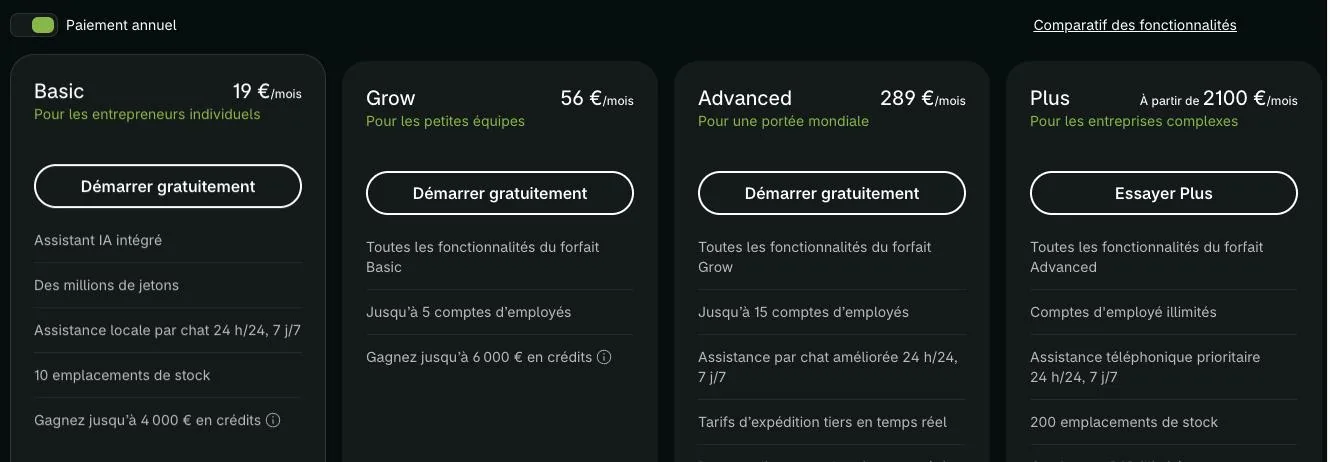
The password can only be removed after you choose a plan. In « Settings », then « Plan », pick one. During the free trial, billing only starts when the trial ends.
- 2
Open the store preferences
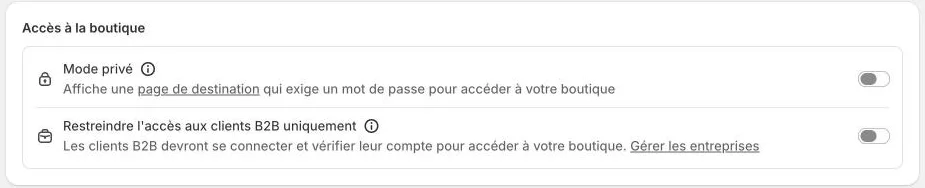
In the left menu, click « Online Store », then « Preferences ». Scroll down to the store access section.
- 3
Turn off password protection
Turn off password protection, then save. The store is visible to everyone, with no password.
- 4
Fill in the title and description for Google
On the same page, write the home page title and meta description. That's what Google and social networks show when someone shares the store.
- 5
Check from another device
Open the store address on a phone where you're not signed in: the home page should appear directly, with no password prompt.
Try it yourself
Shopify starts free, then has a discounted launch offer. You can set everything up before paying.
Try Shopify ↗Affiliate link: it does not change the price for you.
Common mistakes
- Opening the store without a test order: the first customer is the one who finds the mistakes.
- Opening with empty policies or demo products still active.
Official sources
Get the next guides
New Leadpages, HTML Pub and Shopify guides by email, every two weeks. No spam, unsubscribe in one click.