How do you improve your landing page conversion rate from start to finish?
Your page is live, but the conversion rate stays low. Before building a new page or switching tools, there's a logical path: understand where the problem comes from, fix the blockers one by one and measure each improvement. This guide follows that path from start to finish, with Leadpages and HTML Pub features.
The essentials in 30 seconds
- Understand what conversion rate means
- Read your current stats
- Use heatmaps to find blockers
- Rewrite the main headline
- Simplify the form
- Add social proof
- Match your ad and your page
- Optimize for mobile
- Build a thank-you page that works
- Add real urgency
- Run an A/B test
- Turn on Smart Traffic to automate
- Optimize the page's SEO
- Set up weekly tracking
Avoid: Changing several elements at once: impossible to know which one had an effect.
See the details with screenshots ↓Step by step
Screenshots show the interface used in the original guide (Shopify in French, Leadpages in English). In your account, buttons appear in your language.
- 1
Understand what conversion rate means
Conversion rate is the percentage of visitors who take the action you want: fill in a form, click a button or buy. If 100 people visit your page and 3 fill in the form, the rate is 3%. A good rate depends on the industry, but the landing page average is around 3 to 5%. The goal is to beat it by working on each part of the page.
- 2
Read your current stats
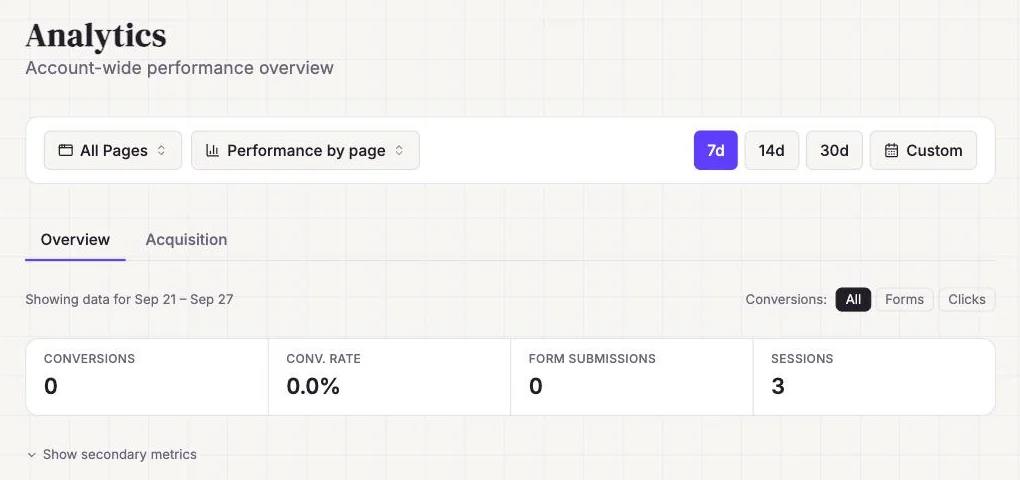
Before changing anything, write down the current conversion rate. In Leadpages, open the page dashboard: you'll see unique visitors, conversions and the rate. That's your starting point.
If you just launched the page and traffic is low, wait for at least 200 visitors before drawing conclusions. Below that, the numbers aren't reliable.
- 3
Use heatmaps to find blockers
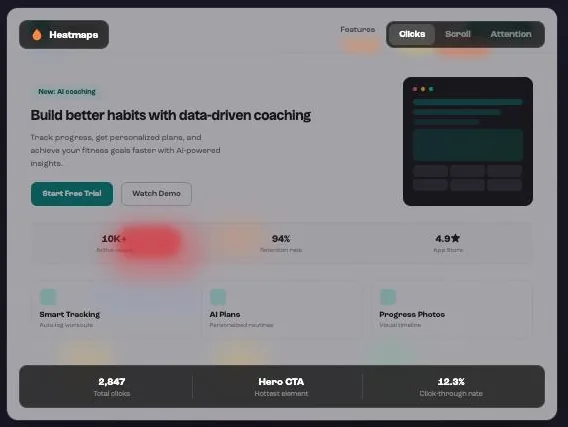
Heatmaps show where visitors click and how far they scroll. If nobody scrolls down to the form, the problem is above it. If everyone clicks an element that isn't a link, that's a missed opportunity.
In Leadpages, heatmaps are available from the Optimize plan. Turn them on in the page settings and let them run a few days before reading them.
- 4
Rewrite the main headline
The headline is the first thing visitors read. It has to answer one simple question: « What's in it for me? ». A good headline talks about the result, not your product.
Bad: « Our innovative digital marketing solution ». Good: « Double your sign-ups in 30 days without raising your ad budget ». Test a headline built around your offer's main benefit.
- 5
Simplify the form
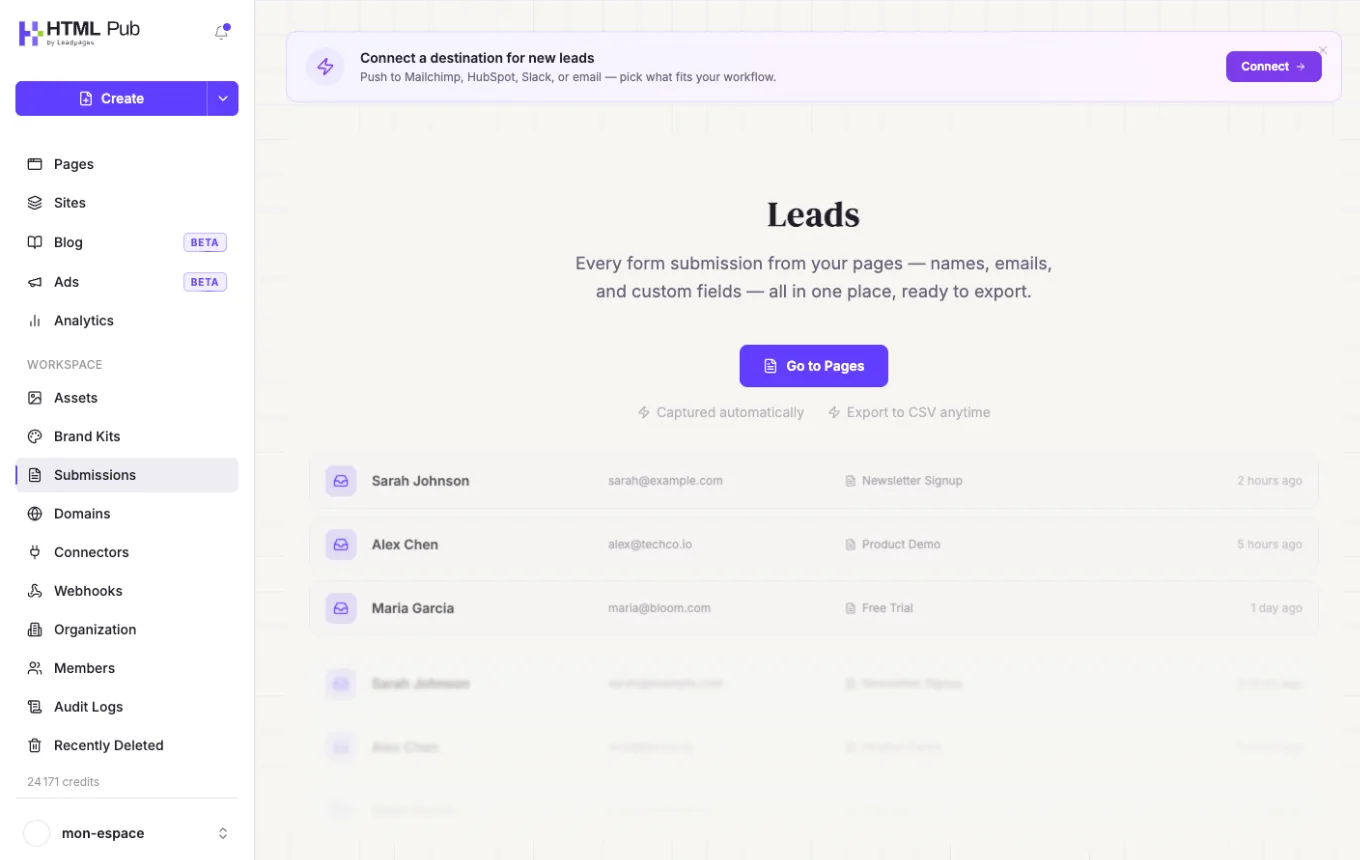
Every extra field in a form lowers the conversion rate. If you ask for first name, last name, email, phone and company, cut it down to email only to start. You can ask for the rest later, once you have the contact.
In Leadpages, open the form in the editor and delete the fields you don't need. Keep a single action button with clear text: « Get the guide », not « Submit ».
- 6
Add social proof
Visitors trust other visitors. Add customer testimonials, partner logos, user counts or ratings. Social proof reassures people and clears doubts.
Place testimonials near the form or the buy button, where visitors hesitate. A testimonial with a name, a photo and a result in numbers is worth more than an anonymous quote.
- 7
Match your ad and your page
If your ad promises a free ebook and the page talks about a webinar, the visitor leaves. The ad message, the page headline and the offer must tell the same story.
Check every traffic source: the Facebook ad copy, the email subject line, the link in your Instagram bio. Each one must match exactly what the page offers.
- 8
Optimize for mobile
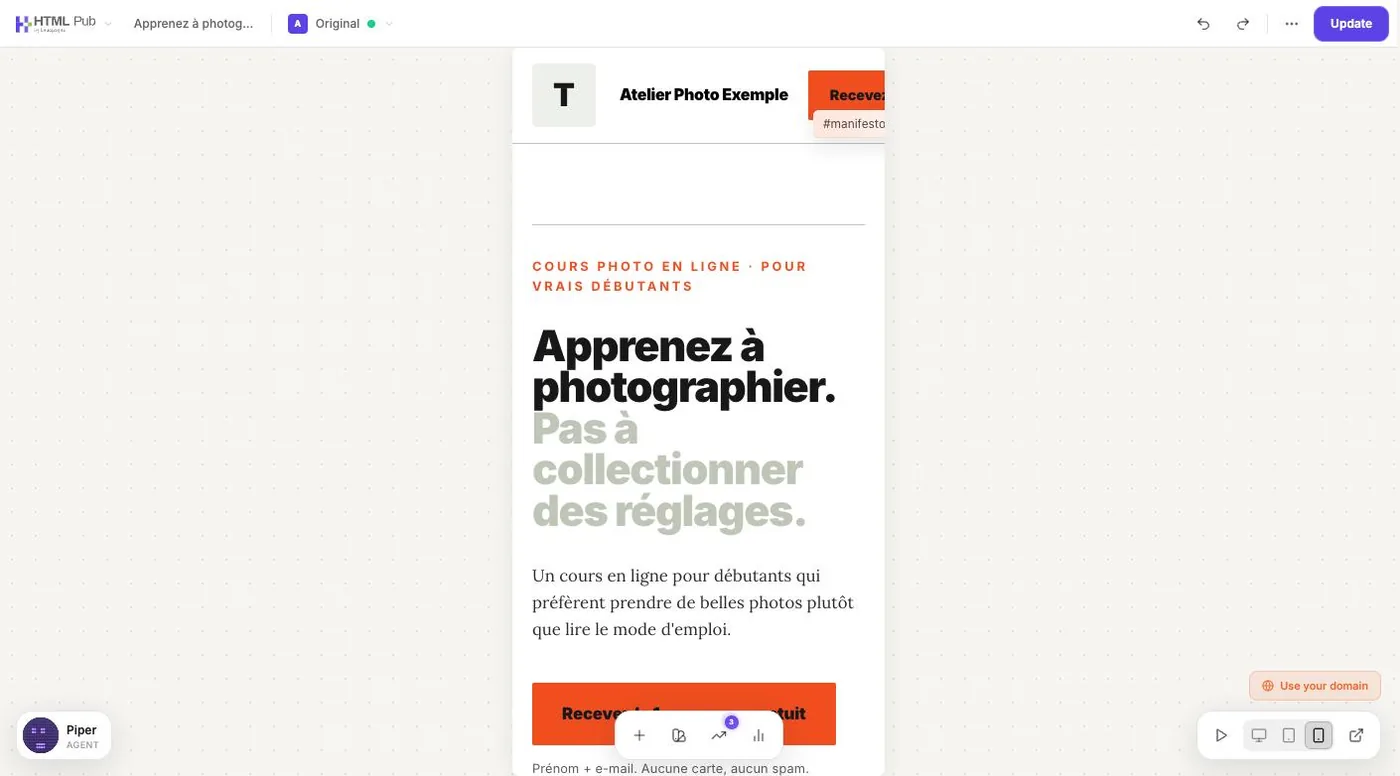
More than half of traffic comes from phones. If your page is hard to read or the button is too small on mobile, you lose conversions.
In Leadpages, use the editor's mobile preview. Check that the headline reads without zooming, the form is easy to fill in with a thumb, and the button is big enough to tap easily.
- 9
Build a thank-you page that works
The thank-you page is the most underrated page. The visitor just converted: they're engaged. Use it to offer a next step: share on social media, sign up for a webinar, discover a product.
In Leadpages, set the thank-you page in the form settings. Build a real page with a next offer rather than a plain « Thanks » message.
- 10
Add real urgency
Urgency works when it's real. A countdown for an offer that never ends destroys trust. Use real limits: a number of spots, a promotion end date, limited stock.
If you have no natural limit, create one: « The first 50 sign-ups get a bonus ». What matters is that it's verifiable and honest.
- 11
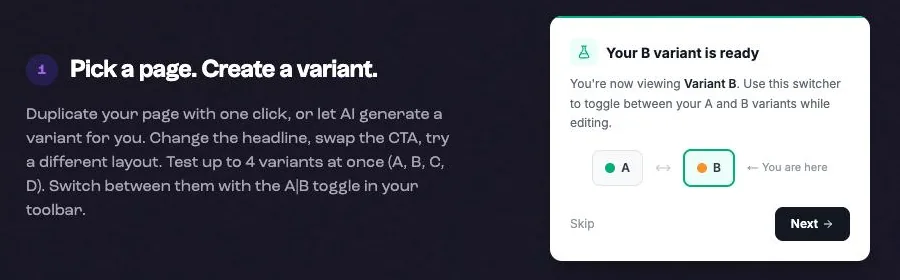
Run an A/B test
Don't change everything at once. Create a variant with a single change: a different headline, a different button color, a shorter form. Let the test run until you have at least 100 conversions per variant for a reliable result.
In Leadpages, duplicate your page, change one element and start the test from the Optimize tab. Leadpages splits the traffic automatically.
- 12
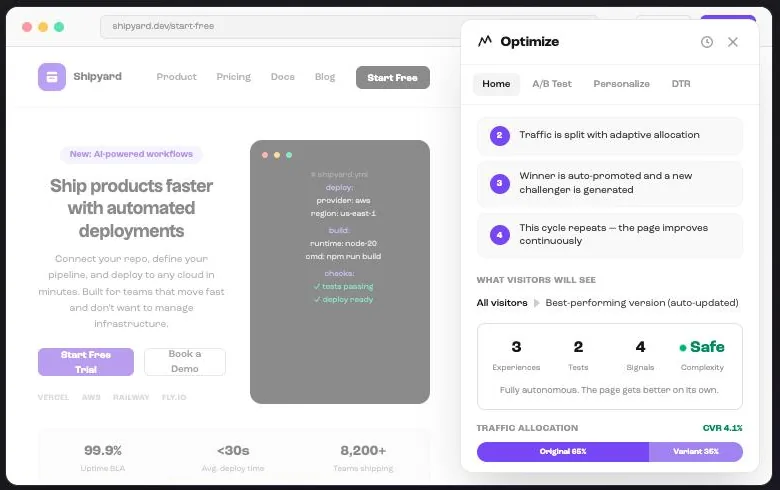
Turn on Smart Traffic to automate
Once you have several variants that work, Smart Traffic takes over. Instead of splitting traffic evenly, the AI sends each visitor to the variant most likely to convert them, based on their device, location and behavior.
Smart Traffic is available from Leadpages Optimize. Turn it on in your page's Optimize tab after creating at least two variants.
- 13
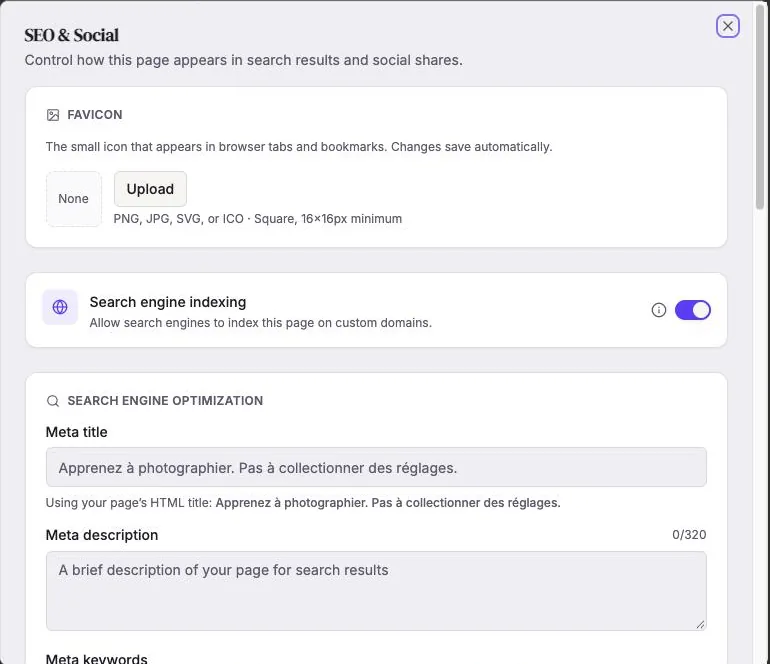
Optimize the page's SEO
A page that ranks well gets free, qualified traffic. Fill in the SEO title, meta description and URL with your main keywords. Add alt text to every image.
In Leadpages, open the page's SEO settings. The title should include your main keyword and stay under 60 characters. The description should make people want to click, in under 155 characters.
- 14
Set up weekly tracking
Conversion rate optimization isn't a one-off project, it's an ongoing process. Every week, write down the conversion rate, the number of visitors and the results of running tests.
Create a simple table with the date, the rate, the change tested and the result. After a few weeks, you'll see which kinds of changes have the most impact on your pages.
Try it yourself
Every HTML Pub and Leadpages plan has a 7-day free trial, with all features.
Try Leadpages for 7 days ↗Affiliate link: it does not change the price for you.
Common mistakes
- Changing several elements at once: impossible to know which one had an effect.
- Drawing conclusions with fewer than 200 visitors per variant.
- Copying a competitor's page without understanding why it works for their audience.
- Ignoring mobile: more than half of traffic comes through it.
- Adding a fake countdown that restarts on every visit.
Official sources
Get the next guides
New Leadpages, HTML Pub and Shopify guides by email, every two weeks. No spam, unsubscribe in one click.