How do you send your leads to Mailchimp, Brevo or your CRM?
A connector sends each form response to another tool, with no copy and paste. HTML Pub offers more than 20: Mailchimp, Brevo, MailerLite, Kit, ActiveCampaign, HubSpot, Pipedrive, Slack, Zapier, Stripe…
The essentials in 30 seconds
- Open « Connectors »
- Authorize the connection
- Set up the automation
- Test with your own email
- Watch for errors
Avoid: Not testing: you find out weeks later that leads weren't coming through.
See the details with screenshots ↓Step by step
Screenshots show the interface used in the original guide (Shopify in French, Leadpages in English). In your account, buttons appear in your language.
- 1
Open « Connectors »
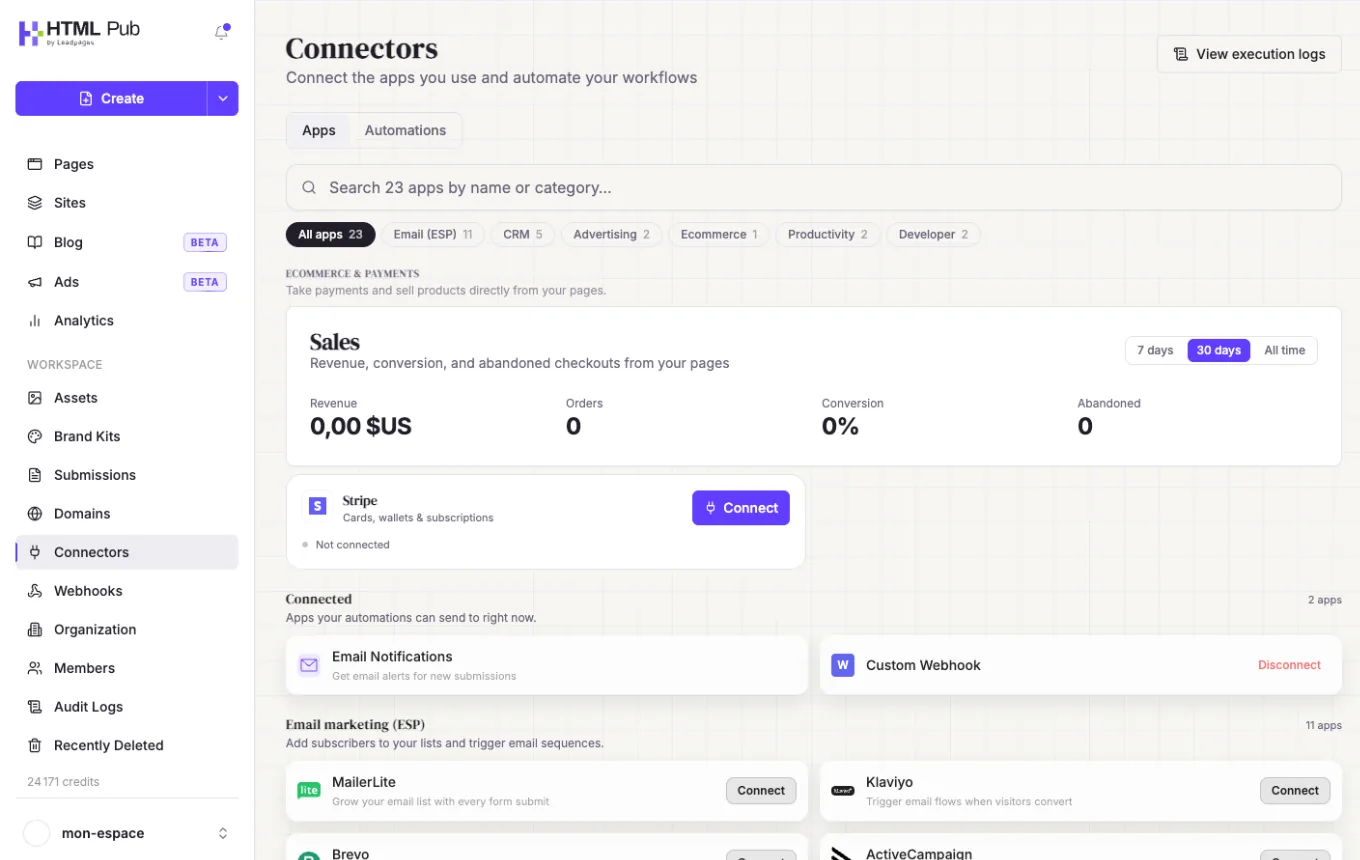
In the left menu, click « Connectors ». Search for your tool by name or category (email, CRM, ads…) and click « Connect ».
- 2
Authorize the connection
Sign in to the tool or paste its API key, depending on what's asked. The status changes to « Connected ».
- 3
Set up the automation
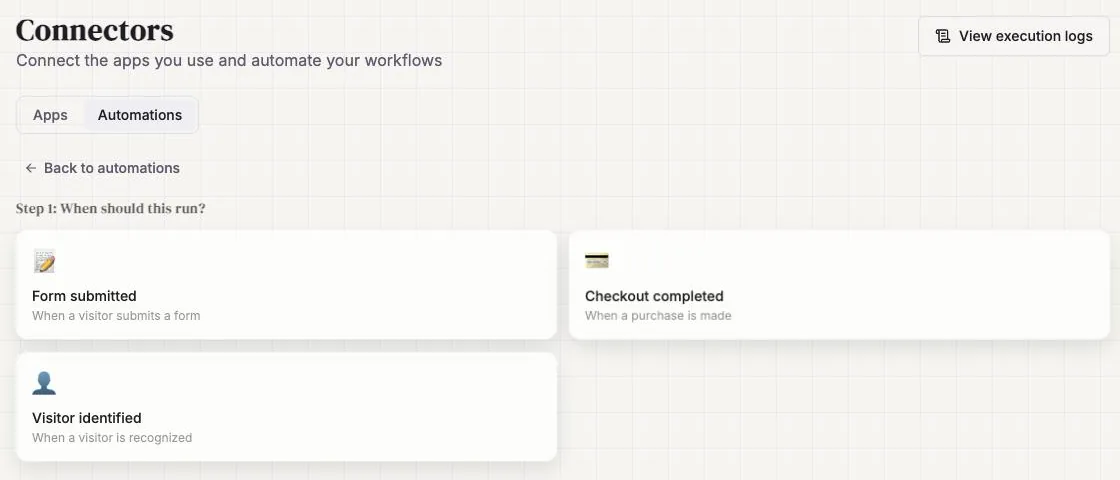
In the « Automations » tab, click « Create automation ». Choose the trigger (« Form submitted », « Checkout completed » or « Visitor identified »), then the connected app that receives the leads.
- 4
Test with your own email
Fill in the form yourself, then check that the contact arrives in the tool.
- 5
Watch for errors
« View execution logs » shows every send: successful, pending or failed, with the reason.
Try it yourself
Every HTML Pub and Leadpages plan has a 7-day free trial, with all features.
Try Leadpages for 7 days ↗Affiliate link: it does not change the price for you.
Common mistakes
- Not testing: you find out weeks later that leads weren't coming through.
- Going over the number of active integrations in your plan.
Official sources
Get the next guides
New Leadpages, HTML Pub and Shopify guides by email, every two weeks. No spam, unsubscribe in one click.