How do you run an A/B test with Leadpages?
An A/B test shows two versions of a page to your visitors and measures which one gets more results. It's included from the Leadpages Grow plan.
The essentials in 30 seconds
- Create a variant
- Choose your goal
- Split the traffic
- Wait for a clear result
- Keep the winner
Avoid: Changing several things at once: you no longer know what made the difference.
See the details with screenshots ↓Step by step
Screenshots show the interface used in the original guide (Shopify in French, Leadpages in English). In your account, buttons appear in your language.
- 1
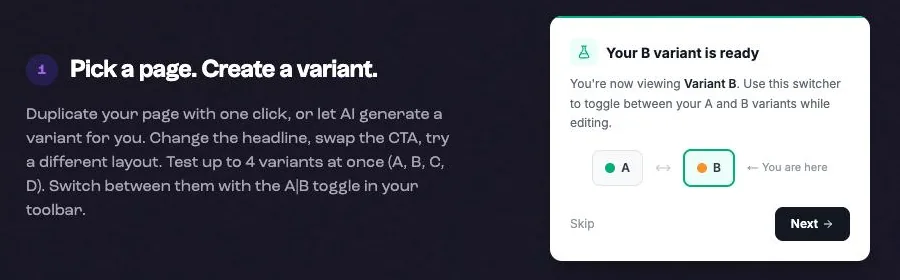
Create a variant
Duplicate your page in one click, or let the AI suggest a variant. Change one important thing only: the headline, the button or the offer.
- 2
Choose your goal
Say what counts as success: form submitted, button click, purchase or a conversion on another site.
- 3
Split the traffic
50/50 is the simplest. You can also choose 70/30 or any split between 10 and 90%. Then publish.
- 4
Wait for a clear result
Results show live with three levels: trending, likely, clear winner. Wait for « clear winner » before deciding.
- 5
Keep the winner
Send 100% of traffic to the better version in one click, then start a new test.
Try it yourself
Every HTML Pub and Leadpages plan has a 7-day free trial, with all features.
Try Leadpages for 7 days ↗Affiliate link: it does not change the price for you.
Common mistakes
- Changing several things at once: you no longer know what made the difference.
- Stopping the test after a few visits: the result is often down to chance.
Official sources
Get the next guides
New Leadpages, HTML Pub and Shopify guides by email, every two weeks. No spam, unsubscribe in one click.